By continuing, you agree to LoansJagat's Credit Report Terms of Use, Terms and Conditions, Privacy Policy, and authorize contact via Call, SMS, Email, or WhatsApp
Disclaimer: The information published on LoansJagat is intended for general informational and educational purposes only and should not be considered financial, legal, or investment advice. Interest rates, loan terms, statistics, and other data may change over time and may vary by lender or source. Please verify the latest information and consult a qualified financial advisor or the respective Bank/NBFC before making any financial decisions.
Subscribe Now
Key Highlights
Net Banking has become the new normal for dealing with bank-related services. Bank of Baroda (bob) also offers net banking service to its customers. You just need to follow certain steps and visit the branch once for form submission. In this blog, we will explain how you can activate Net Banking inBobb.
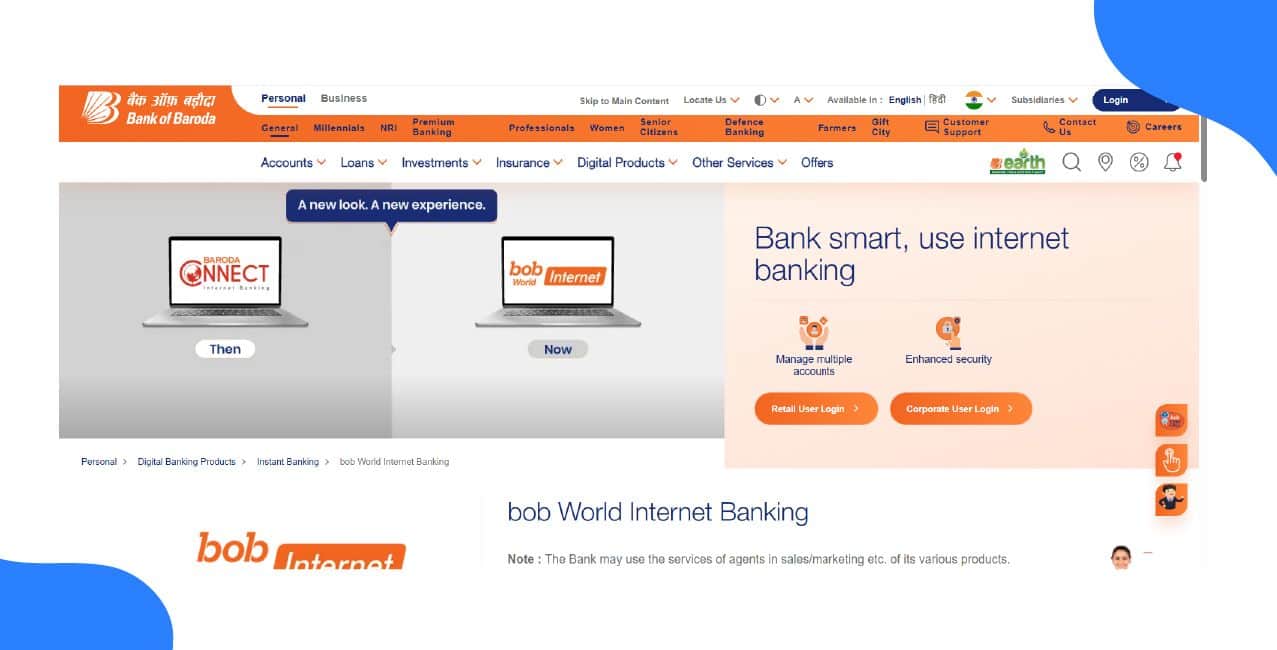
BOB’s net banking service is called Bob World Internet or Bob World Internet Banking. You can use the online services to transfer funds, pay bills, view statements, and more, from anywhere. However, you first need to register or activate net banking, then log in for the first time, set up your credentials, etc. The bank offers both online and offline methods for activation.
Below are the detailed steps (offline and online) to activate BOB Net Banking:
If you have access to the internet, you can use online registration using a debit card. You do not have to visit the branch physically, just follow these steps.
Follow these steps as per your preference. If you already have an active debit card, you don’t have to visit the bank, even once.
You can also activate net banking by visiting the branch. All you have to do is follow these steps:
After setting the password, you are good to go. You can change your PINs, use various services and make your life much easier.
After activating your account, you need to log in to it to use the services. This is how you can log in:
Now, you can use your bank account without any safety concerns. Also, whenever you feel you are short of cheques or want to change the ATM PIN code, you can do it via Bob Netbanking.
Common Issues During Activation & Solutions
While using the net banking in Bob, some customers face a few issues. Let’s talk about it so that if you are facing the same issue, you can find the solution.
You can also go to the base branch or the branch where you have opened your account. To find the address, use the branch locator.
Do you know you can also contact the officials at Bob by calling their toll-free numbers: 1800-5700 or 1800-5000? For the international customers, the contact number is +91 79-66296009.
These are the services and benefits you get after activating net banking in Bob:
So, you are not only saving your time, but also some money and effort too!
If you have your debit card, you can easily activate net banking from home. If you do not have it, no problem, just visit your home branch once and submit the required documents. After activating your net banking account, log in and change your password and PINs. This will help you keep your financials more secure and use the services as you deem right.
How do I close or deactivate net banking?
Request closure by visiting your branch or calling customer care. Get written confirmation and check that online access is revoked.
What to do if I spot a fraud or unauthorised charge?
Block your card or net banking access immediately. Call the bank’s helpline. File a dispute online and consider filing an FIR if needed.
Other Related Pages | |||
About the author

LoansJagat Team
‘Simplify Finance for Everyone.’ This is the common goal of our team, as we try to explain any topic with relatable examples. From personal to business finance, managing EMIs to becoming debt-free, we do extensive research on each and every parameter, so you don’t have to. Scroll up and have a look at what 15+ years of experience in the BFSI sector looks like.
Related Blog Post
Simplify All Your Loans Into One Affordable EMI

Customers Served

Debt Consolidated

1200+ Reviews

Locations in India
Club all Loans & Credit Card Bills into Single EMI

Quick Apply Loan
Consolidate your debts into one easy EMI.

Takes less than 2 minutes. No paperwork.

10 Lakhs+
Trusted Customers

2000 Cr+
Loans Disbursed

4.7/5
Google Reviews

50+
Banks & NBFCs Offers
Other services mentioned in this article