.png&w=3840&q=65)
By continuing, you agree to LoansJagat's Credit Report Terms of Use, Terms and Conditions, Privacy Policy, and authorize contact via Call, SMS, Email, or WhatsApp
Disclaimer: The information published on LoansJagat is intended for general informational and educational purposes only and should not be considered financial, legal, or investment advice. Interest rates, loan terms, statistics, and other data may change over time and may vary by lender or source. Please verify the latest information and consult a qualified financial advisor or the respective Bank/NBFC before making any financial decisions.
Transform Your Debt into One
Subscribe Now
About the author

LoansJagat Team
‘Simplify Finance for Everyone.’ This is the common goal of our team, as we try to explain any topic with relatable examples. From personal to business finance, managing EMIs to becoming debt-free, we do extensive research on each and every parameter, so you don’t have to. Scroll up and have a look at what 15+ years of experience in the BFSI sector looks like.
Related Blog Post
Simplify All Your Loans Into One Affordable EMI

Customers Served

Debt Consolidated

1200+ Reviews

Locations in India
Club all Loans & Credit Card Bills into Single EMI

Quick Apply Loan
Consolidate your debts into one easy EMI.

Takes less than 2 minutes. No paperwork.

10 Lakhs+
Trusted Customers

2000 Cr+
Loans Disbursed

4.7/5
Google Reviews

50+
Banks & NBFCs Offers
Other services mentioned in this article
Individuals and Businesses need bank statements for a variety of reasons, including record keeping, for filing monthly GST returns, using it as address proof in various filings and procedures and so on. A bank statement gives you a summary of your financial transactions over a period of time with your bank account. It is issued periodically to the account holders. While earlier, every institution demanded a hard copy of the statement signed and stamped by the Banks, with technology going paperless and the emphasis on digital India now almost every company and government department accepts the e-Bank Statements provided by the Banks, one can now download their bank statement online itself.
Download Bank Statement from Email
Banks nowadays send bank statements of monthly transactions on the registered email ids of the customers. The mail is usually is sent in the first week of the month and consists of the bank statement of the previous month.
Follow the steps mentioned below to download the bank statement from email.
Download Bank Statement on mobile phone :
Open the app on which your email id is registered (Gmail/Yahoo etc)
In the search box, type the keyword ‘bank statement’ and the name of your bank. For example type ‘bank statement hdfc’.
From the search result, locate and open the email.
The bank statements are protected by passwords. To open the PDF file of the bank statement, read out the password instructions carefully.
Download the file and open using the password.
Download Bank Statement on Desktop:
Open the webpage of your email client.

In your mail, type the keyword ‘bank statement’ and the name of your bank in the search box.
From the search result, locate and open the relevant email.

The bank statements which come via emails are password protected. To open the PDF file of the bank statement, read out the password instructions carefully.

Download the file and open using the password
Download Bank Statement from Netbanking
If you are using the net banking facility provided by your bank, then you can download bank statement straight away without going to the bank. To download the bank statement in PDF, follow the below steps.
State Bank of India
Open SBI Online Banking Portal. Login to your account.

Visit My Accounts -> Account Summary -> Account Statement

Select the duration for which you want the statement.

Also, select the type of report.
ICICI Bank
Open ICICI Bank Netbanking portal and log in to your account.

Click on Detailed statement.

Choose the time period.

Click on ‘Get Statement’.
Bank of Baroda
Open Bank of Baroda portal and log in to your account.

Access Accounts -> Operative Accounts -> Account Query

Select the duration for which you want the bank statement and click on ‘Statement’.
Bank of Baroda
From the bottom drop-down menu, select PDF and click on Save.

Axis Bank
Open Axis bank portal. Login to your account.

Visit Accounts -> My Accounts -> Statement Enquiry
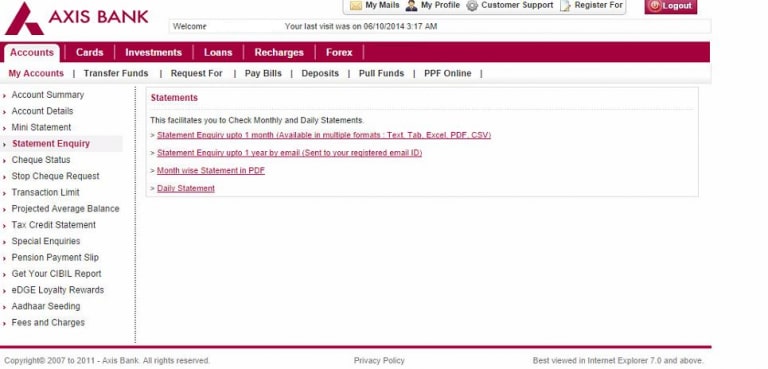
To download the statement, select an option from the main screen.
*T&C Apply
Open HDFC bank portal and log in to your account.

Click on the ‘Enquire’ option present on the left-hand side menu. Choose Download Historical Statement.

Select the appropriate account, the duration for which the statement is required and then choose PDF format.

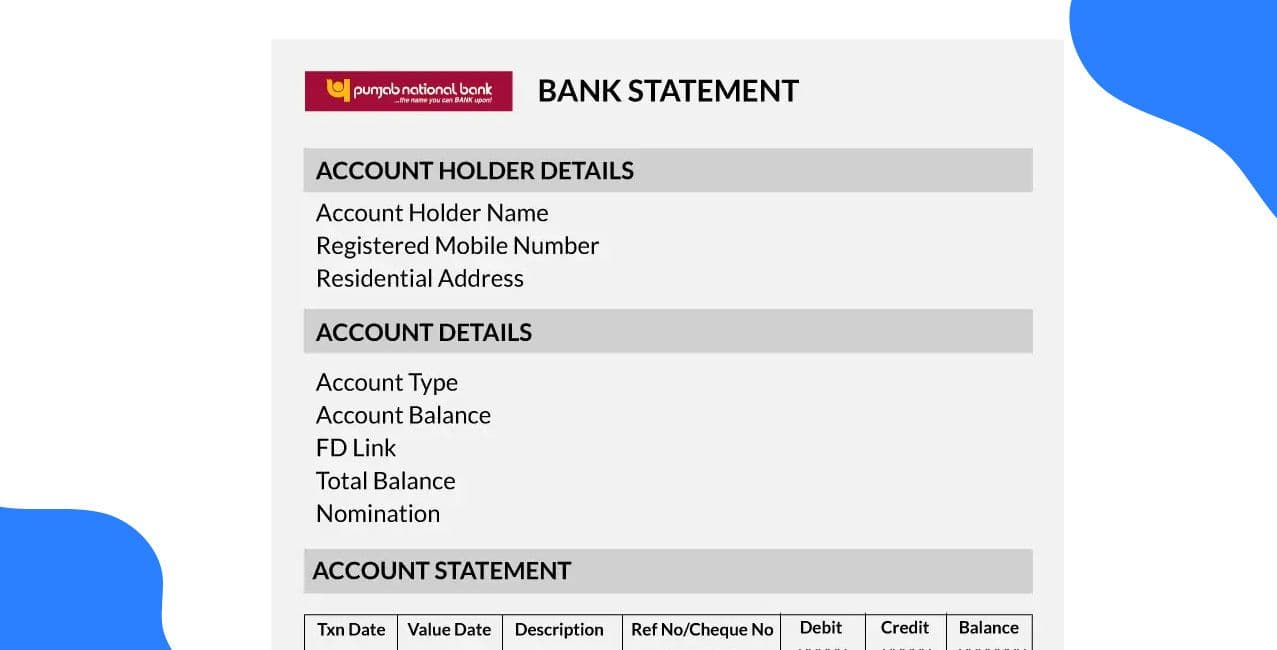
Punjab National Bank
Open Punjab National Bank portal and log in to your account.

From the left-hand side menu, select Account Statement.

Select ‘Transaction Date’ (from and to) for which you want the bank statement. Click on Search.

Later select PDF as a format by going to ‘Download Details as’.
Bank of India
Open Bank Of India portal and log in to your account.

Select ‘Accounts page’ -> ‘Options’ -> ‘Account Statement’ and press ‘Go’.

Select the duration for which you want the bank statement by filling in ‘start date’ and ‘end date’

Click on the ‘Statement’ button to view the statement of the chosen duration.
The next screen holds ‘Save as PDF’ button. Click on it to save the statement.

Kotak Mahindra Bank
Open Kotak Mahindra Bank portal and login to your account.

Click on Banking tab.
From the left-hand side menu, click on ‘Savings Account / Current Account’ --> View / Download Account Statement.

Select the duration for which you want the bank statement. Click GO.
The statement will appear on the screen. From the ‘Download as’ menu options, select PDF format and click download.

Canara Bank
Open Canara Bank portal and log in to your account.

Click on the ‘Accounts’ tab and visit ‘Account Statement’.

Select the account and duration by choosing the start and end date.
Click on download. Choose the file format accordingly.